Appsentia generates executive-grade PDF reports that you can share with management, use in performance reviews, or present to stakeholders. Learn how to create, customize, and leverage these insights effectively.
Types of Reports Available
Individual Employee Report
Detailed analysis of a single employee's absence behavior including patterns, costs, and risk assessment.
Best for:
- Performance reviews
- HR investigations
- Disciplinary proceedings
- Manager reporting
Company Dashboard Report
High-level overview of organizational absenteeism with department breakdowns and trend analysis.
Best for:
- Executive presentations
- Board meetings
- Annual reporting
- Budget planning
Generating an Individual Employee Report
Navigate to Individual Analysis
From the main menu, go to Company Analysis. The employee list shows all active employees with their key metrics.
Select an Employee
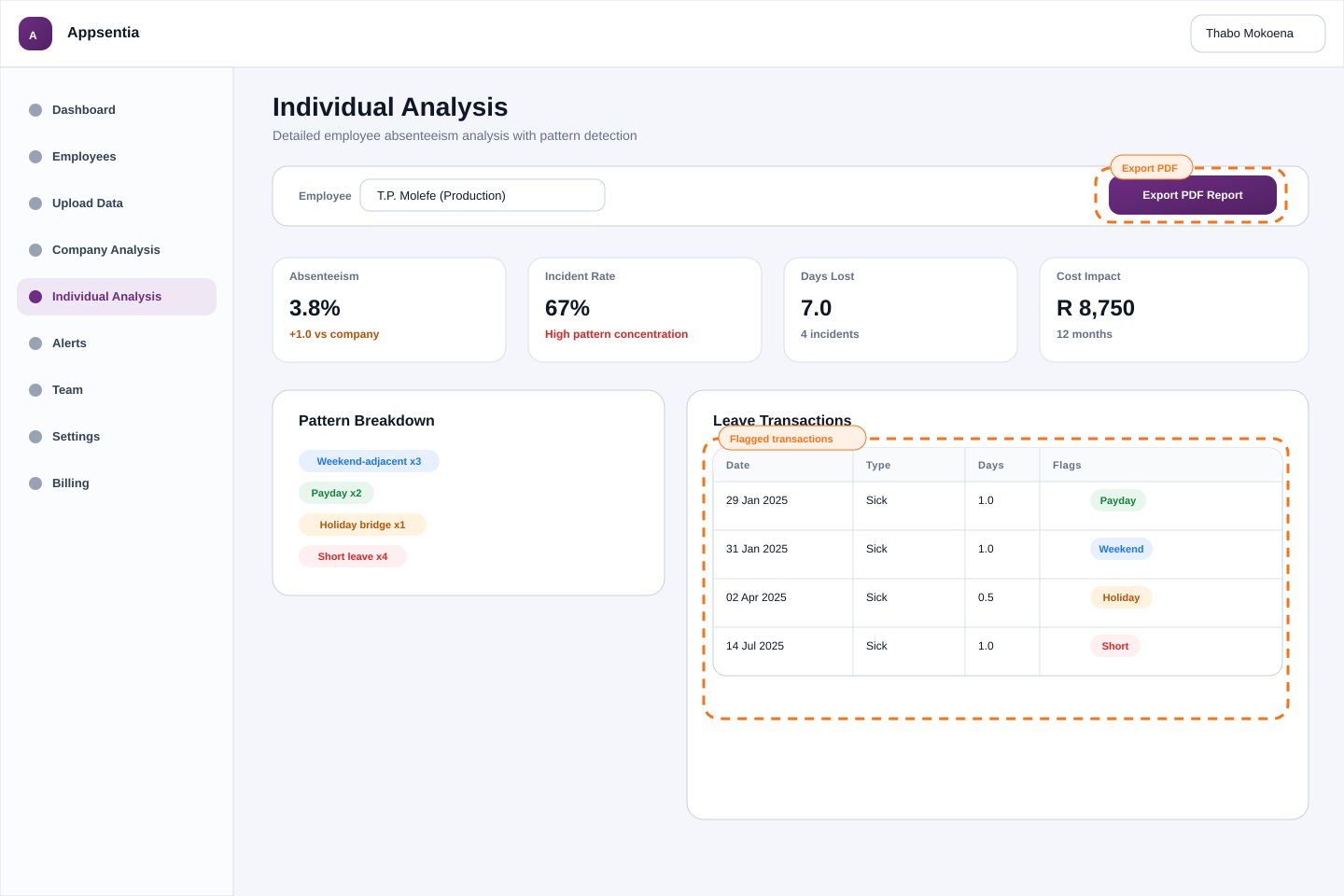
Click on the employee row you want to analyze. This opens their detailed individual analysis page showing:
- Employee information (number, name, department)
- Absenteeism summary metrics
- Pattern flags and incident rate
- Leave transaction history
- Risk assessment
Set Date Range (Optional)
By default, reports include all available data. To focus on a specific period:
- Use the date range selector at the top of the page
- Select from presets: Last 6 Months, Last Year, Year to Date
- Or choose custom dates for precise periods
Generate the PDF
Click the "Export PDF Report" button in the top-right corner. The system generates a professional report in 5-10 seconds.
Download and Review
Your browser automatically downloads the PDF (e.g., Employee_Report_Naidoo_SK_2024-11-23.pdf). Open to verify content before sharing.
What's Included in Individual Reports
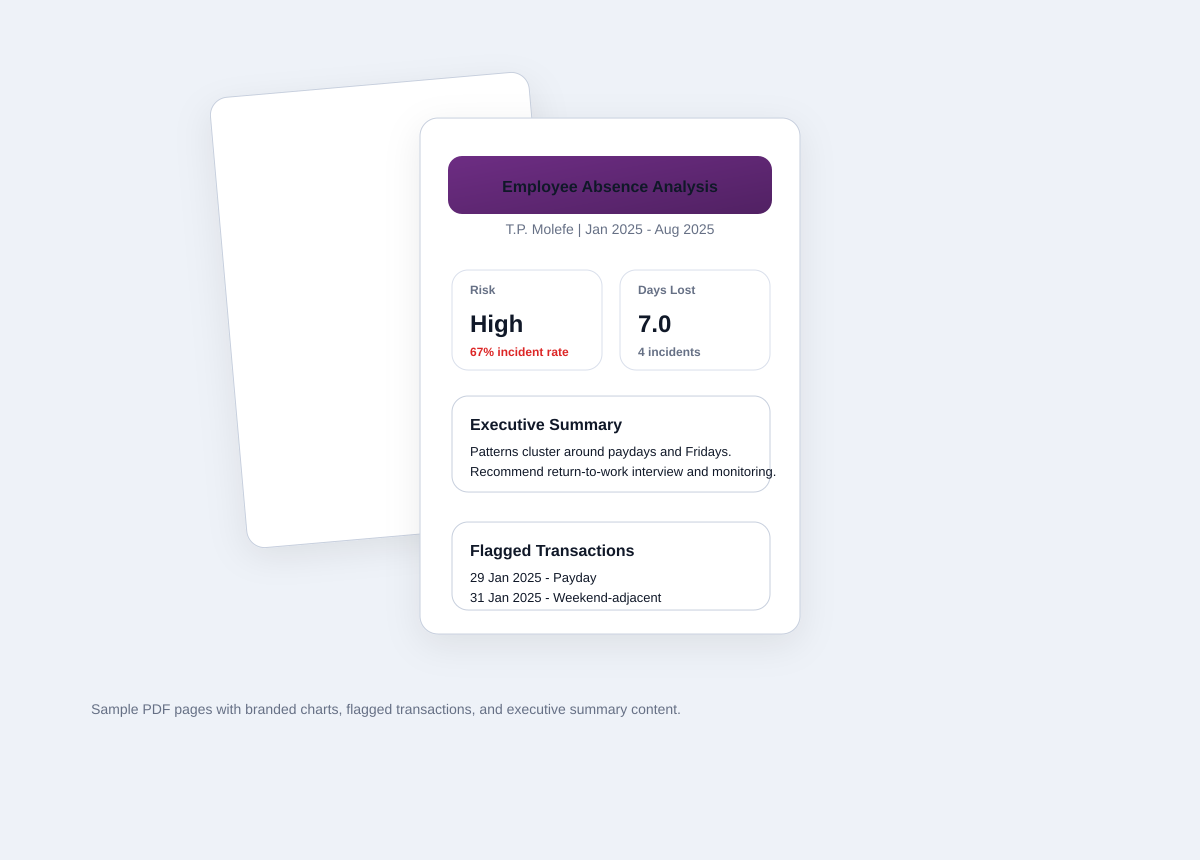
📄 Cover Page
Professional branded cover with company name, employee details, reporting period, and generation date.
📊 Executive Summary
One-page overview including:
- Risk level assessment (Low/Medium/High)
- Key performance indicators at a glance
- Primary absenteeism concerns
- Recommended actions based on analysis
📈 Detailed Analysis
Comprehensive breakdown with:
- Absenteeism Metrics: Days lost, absenteeism rate, incident rate, cost impact
- Pattern Flags: Visual breakdown of detected patterns with counts
- Absence Type Distribution: Sick vs annual vs family responsibility leave
- Trend Analysis: Month-by-month absence patterns
📋 Flagged Transactions
Detailed table of all sick leave instances that triggered pattern flags, with dates, duration, and specific patterns detected. Useful for discussing specific incidents with the employee.
💡 Insights & Recommendations
AI-generated insights about the employee's absence behavior, comparisons to company averages, and actionable recommendations for HR intervention.
Best Practices for Using Reports
Performance Review Meetings
- Prepare in advance: Generate and review the report before the meeting
- Lead with data: Use the executive summary to frame the conversation objectively
- Be specific: Reference exact dates from the flagged transactions table
- Listen first: Allow the employee to explain patterns before assuming abuse
- Document outcomes: Note the employee's explanations and agreed actions on the report
Disciplinary Processes
- Include the report in the disciplinary file as objective evidence
- Highlight specific incidents with context from the flagged transactions
- Compare the employee's metrics to company thresholds to show deviation
- Ensure the employee receives a copy during the hearing for transparency
Executive Presentations
- Use the dashboard export for high-level overviews
- Select individual reports for case studies (anonymize employee names if presenting externally)
- Focus on cost impact metrics when presenting to finance/budget committees
- Highlight department-level patterns when requesting resources or policy changes
Report Customization Options
Date Range Selection
Tailor reports to specific periods for different purposes:
- Last 6 months: Recent behavior for performance reviews
- Last 12 months: Annual review or pattern verification
- Custom range: Specific investigation periods (e.g., "Summer 2024")
Company Branding (Enterprise Plan)
Enterprise customers can customize:
- Company logo on cover page and headers
- Brand colors for charts and visual elements
- Footer text (e.g., confidentiality notices)
- White-label option (removes Appsentia branding)
Sharing and Distribution
Security Considerations
⚠️ Reports contain sensitive employee data. Handle responsibly:
- • Only share with authorized personnel (HR, direct managers, legal)
- • Use encrypted email when sending electronically
- • Mark as "Confidential" when printing
- • Store securely (password-protected folders, locked filing cabinets)
- • Delete/shred after the retention period
Email Distribution Tips
- Subject line: "Confidential: [Employee Name] Absence Analysis Report"
- Password-protect the PDF (can be done in Adobe Acrobat or most PDF tools)
- Send password via separate communication channel (SMS, phone call)
- Use your company's secure file-sharing system when possible
Print and Physical Distribution
- Print only necessary copies (minimize paper trail)
- Use secure printers (not shared/public ones)
- Mark each page "Confidential" in the footer
- Hand-deliver in sealed envelopes
- Maintain a distribution log for audit purposes
Scheduled Reports (Professional/Enterprise)
Professional and Enterprise plans can automate report generation and distribution:
Setting Up Scheduled Reports
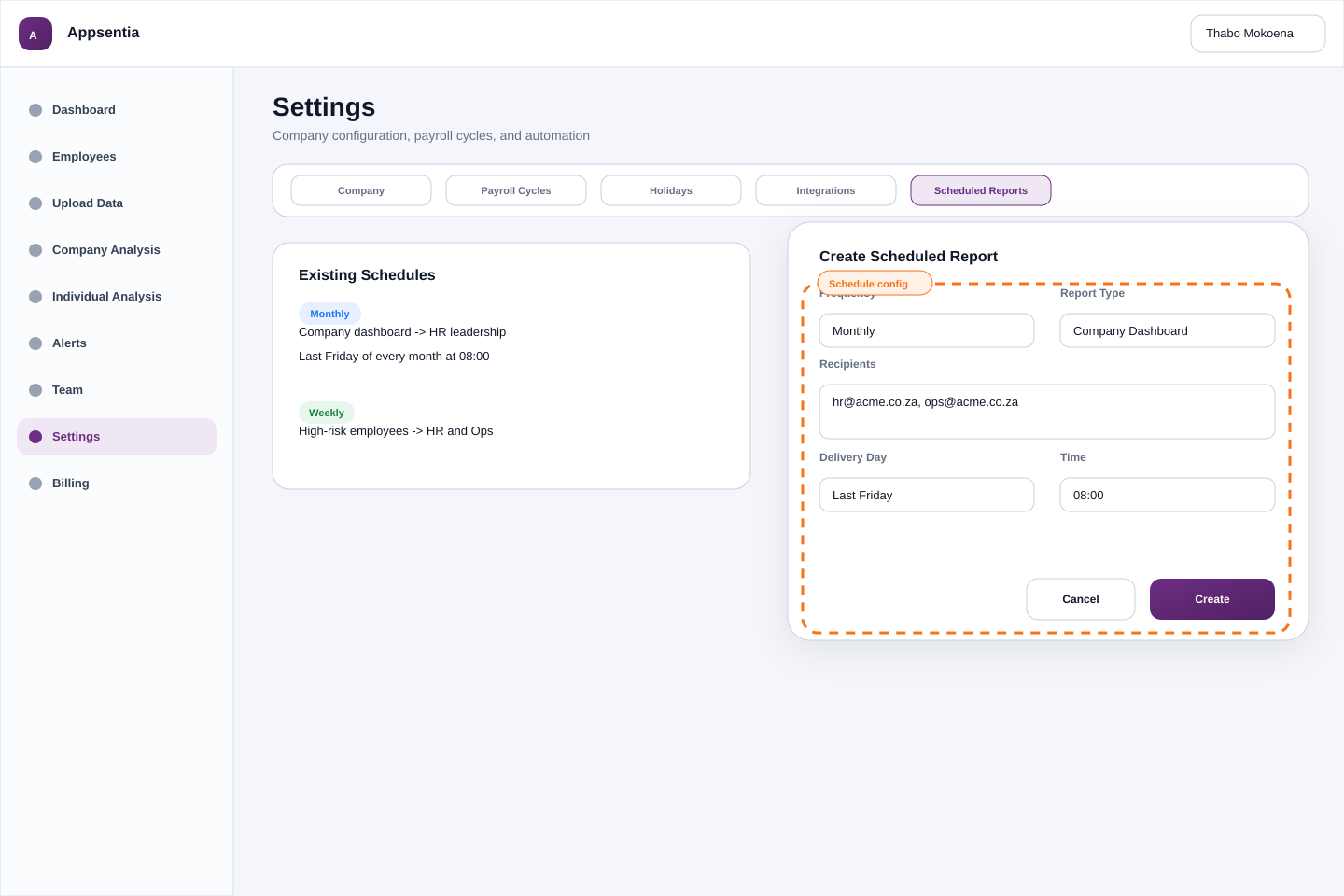
- Navigate to Settings → Scheduled Reports
- Click "Create Schedule"
- Choose frequency: Weekly, Monthly, Quarterly
- Select report type: Company Dashboard or High-Risk Employees
- Add email recipients (up to 10)
- Set delivery day/time
Common Schedules
- Weekly: High-risk employee summary for HR team (every Monday morning)
- Monthly: Company dashboard for management review (last Friday of month)
- Quarterly: Executive report for board meetings (first of Jan/Apr/Jul/Oct)
Exporting Raw Data
Need data for your own analysis or reporting tools?
CSV/Excel Exports
Export raw data from any page:
- Company Analysis: Export all employees with their metrics
- Individual Analysis: Export leave transactions for one employee
- Alerts: Export list of flagged employees
API Access (Professional/Enterprise)
Integrate Appsentia data into your own systems:
- RESTful API with JSON responses
- Pull employee metrics, leave data, and pattern flags
- Build custom dashboards in Power BI, Tableau, or Google Data Studio
- Automate data feeds to HRIS or payroll systems
Troubleshooting
Q: PDF generation is taking a long time
A: Large datasets (over 500 transactions) take 15-30 seconds to process. Consider narrowing the date range for faster generation. If it takes over 1 minute, refresh the page and try again.
Q: Some metrics are showing as "0" or "N/A"
A: Ensure you've uploaded leave data for the selected date range and that the employee has activity during that period. If recent uploads, try refreshing the page to clear cache.
Q: Can I edit or annotate the PDF?
A: PDFs are read-only by design for data integrity. Use Adobe Acrobat or similar tools to add comments/annotations after download if needed for presentations.
Next Steps
Master report generation by:
- ✓ Generating a test report for a high-risk employee
- ✓ Reviewing the Best Practices guide for reducing absenteeism
- ✓ Setting up scheduled reports if on Professional/Enterprise plan
- ✓ Creating a reporting workflow for your HR team