Welcome to Appsentia! This guide will walk you through the essential steps to start analyzing your workforce absenteeism data quickly and effectively.
What You'll Need
- Your company email address
- Basic company information (name, workday schedule)
- Employee data (can be uploaded later)
- Leave/absence records in Excel or CSV format (optional for initial setup)
Step-by-Step Setup
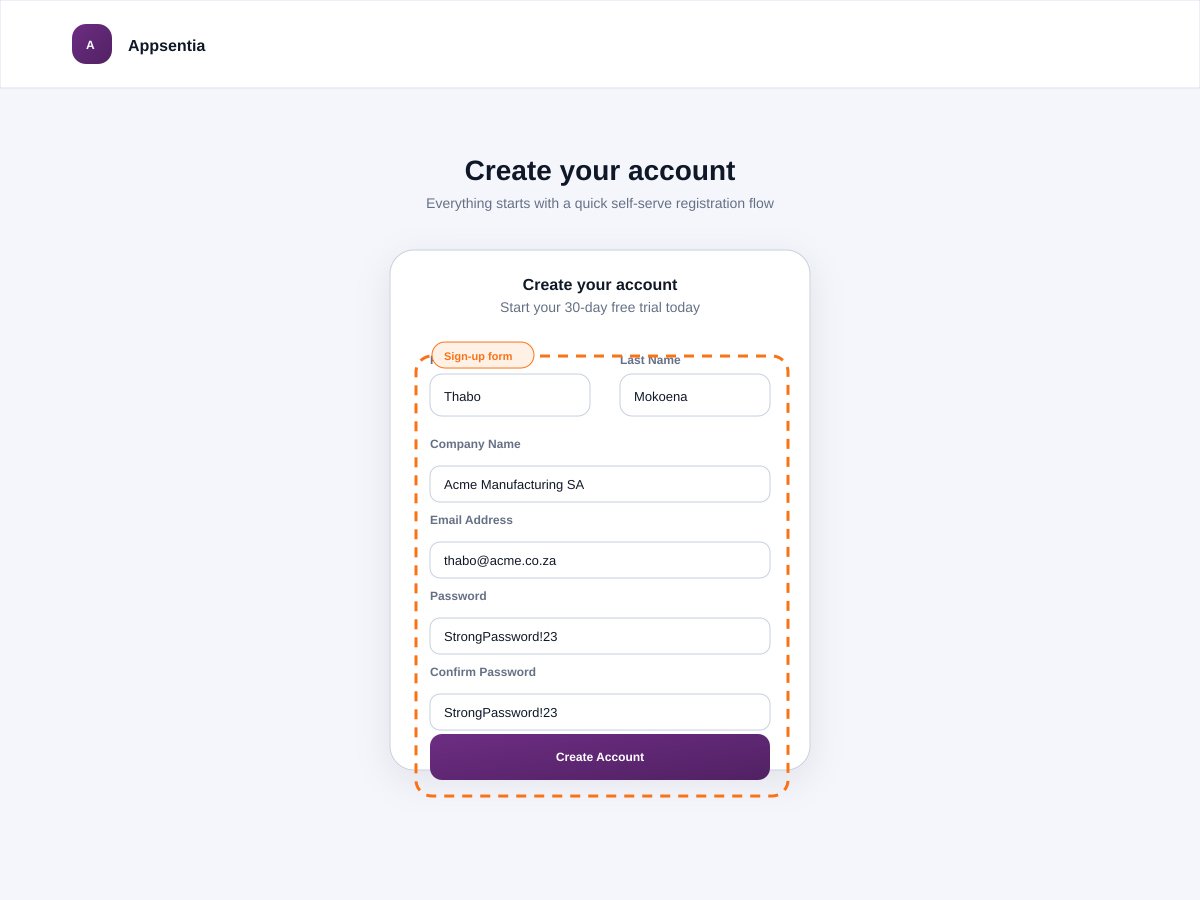
Create Your Account
Visit the Appsentia homepage and click "Start Free Trial". Enter your email address and create a secure password. You'll receive a verification email—click the link to activate your account.
Configure Your Company Settings
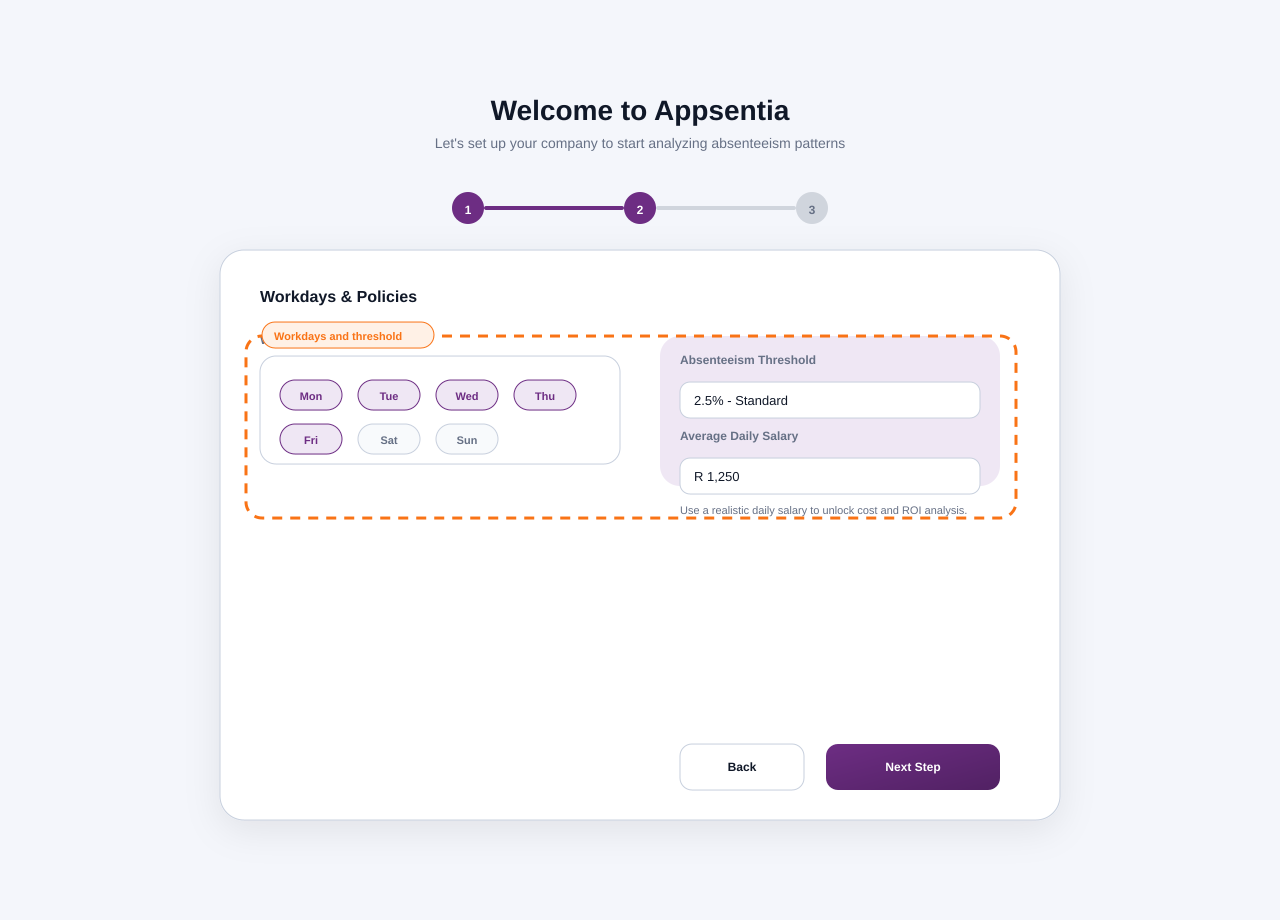
After logging in for the first time, you'll be prompted to set up your company profile:
- Company Name: Enter your organization's official name
- Workdays: Select which days your employees typically work (Monday-Friday is pre-selected)
- Absenteeism Threshold: Set your acceptable threshold (2.5% is the South African standard)
- Average Daily Salary: Optional but recommended for accurate cost calculations
Add Your First Employees
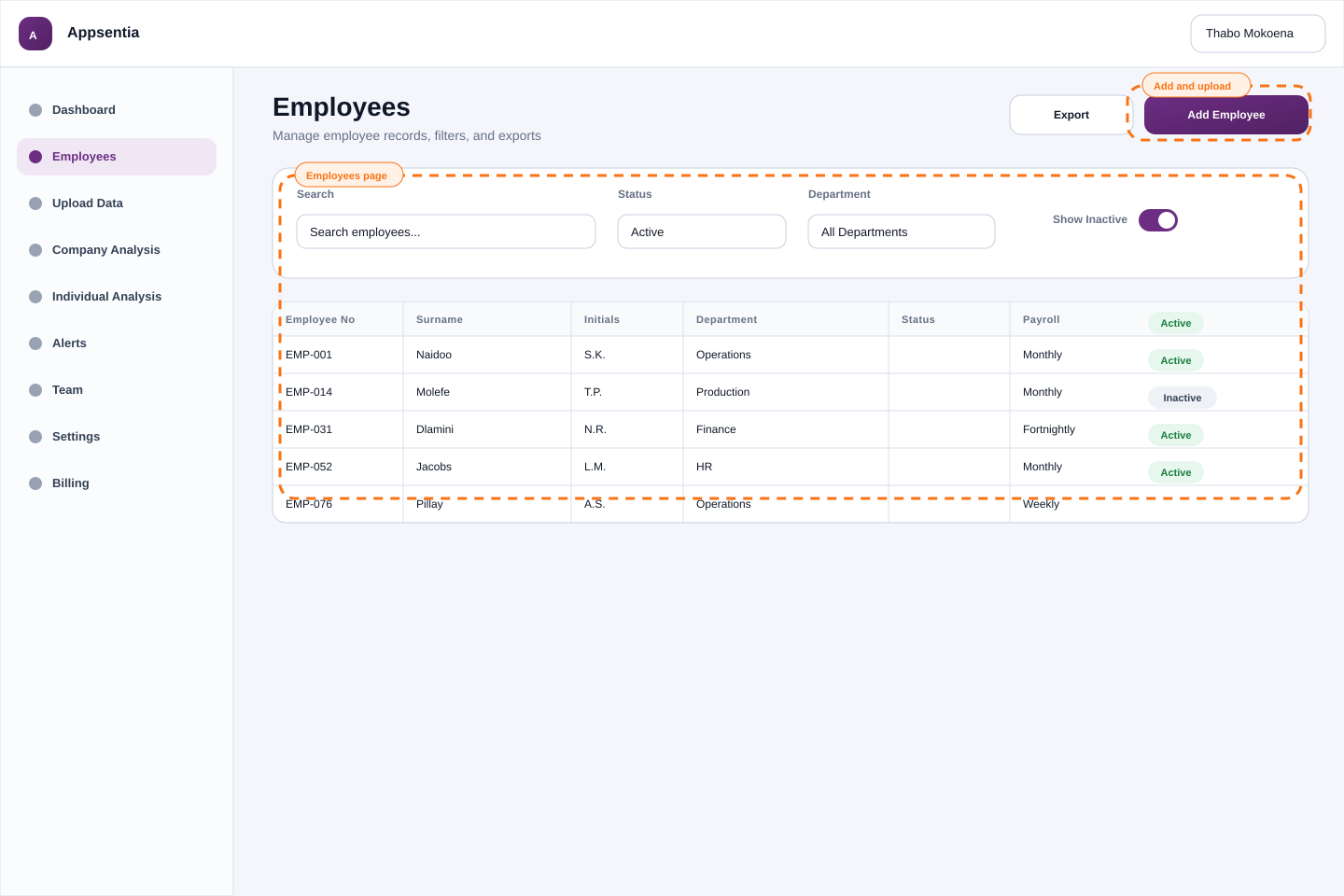
Navigate to Employees in the main menu. You can either:
- Manual Entry: Click "Add Employee" and enter details for a few key employees
- Bulk Upload: Click "Upload Employees" and use our Excel template (recommended for 10+ employees)
Required fields: Employee Number, Surname, Initials, Department (optional but helpful for analysis).
Upload Leave Data
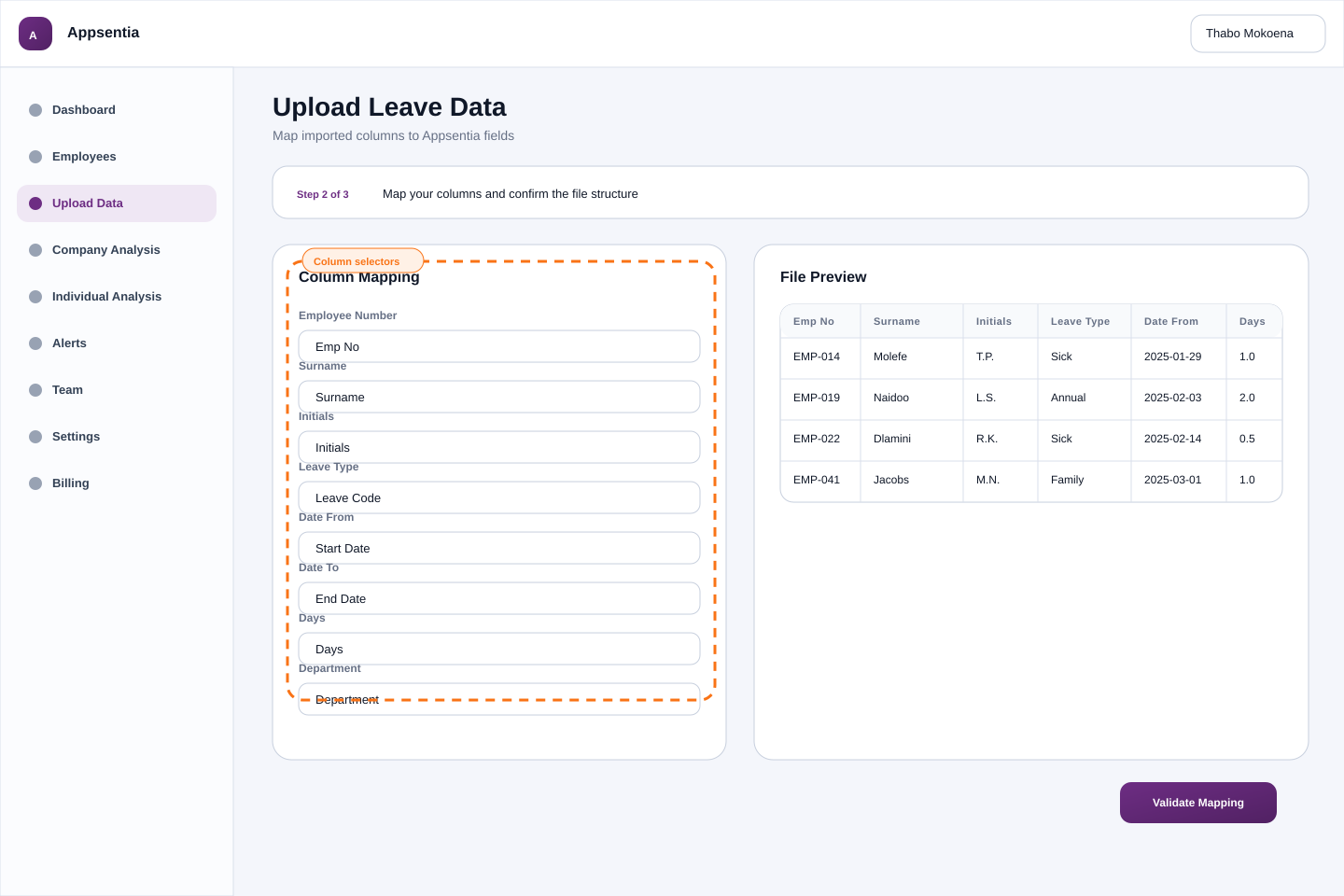
Go to Data Upload from the navigation menu. Upload your historical leave data:
- Click "Upload New Data"
- Select your Excel or CSV file containing leave records
- Map the columns in your file to Appsentia's required fields
- Review the preview and click "Process Data"
Explore Your Dashboard
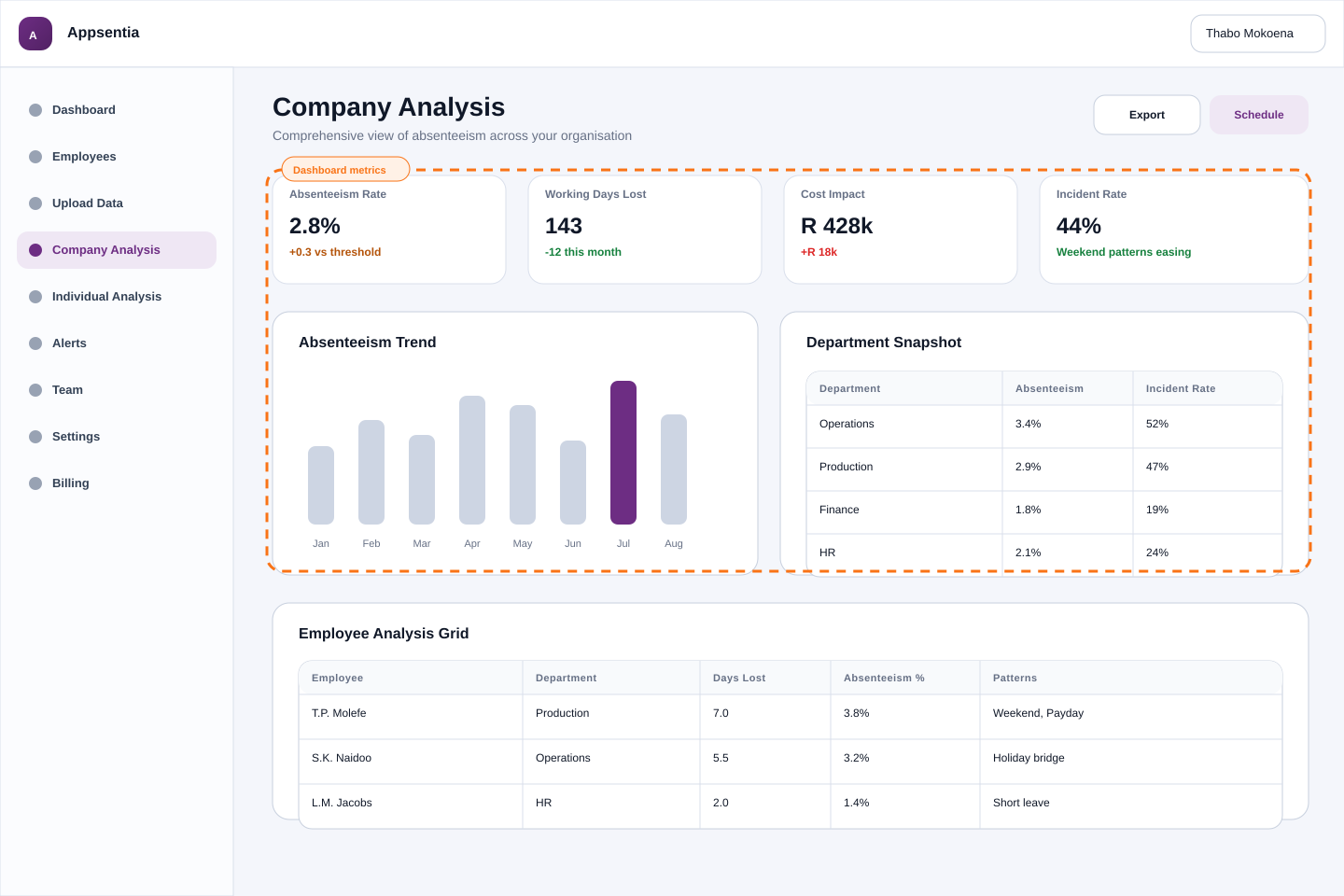
Once your data is processed, head to the Company Analysis dashboard to see:
- Total working days lost to absenteeism
- Absenteeism rate compared to your threshold
- Cost impact of sick leave
- Flagged patterns (weekend-adjacent leaves, payday patterns, etc.)
- Department-level breakdowns
Generate Your First Report
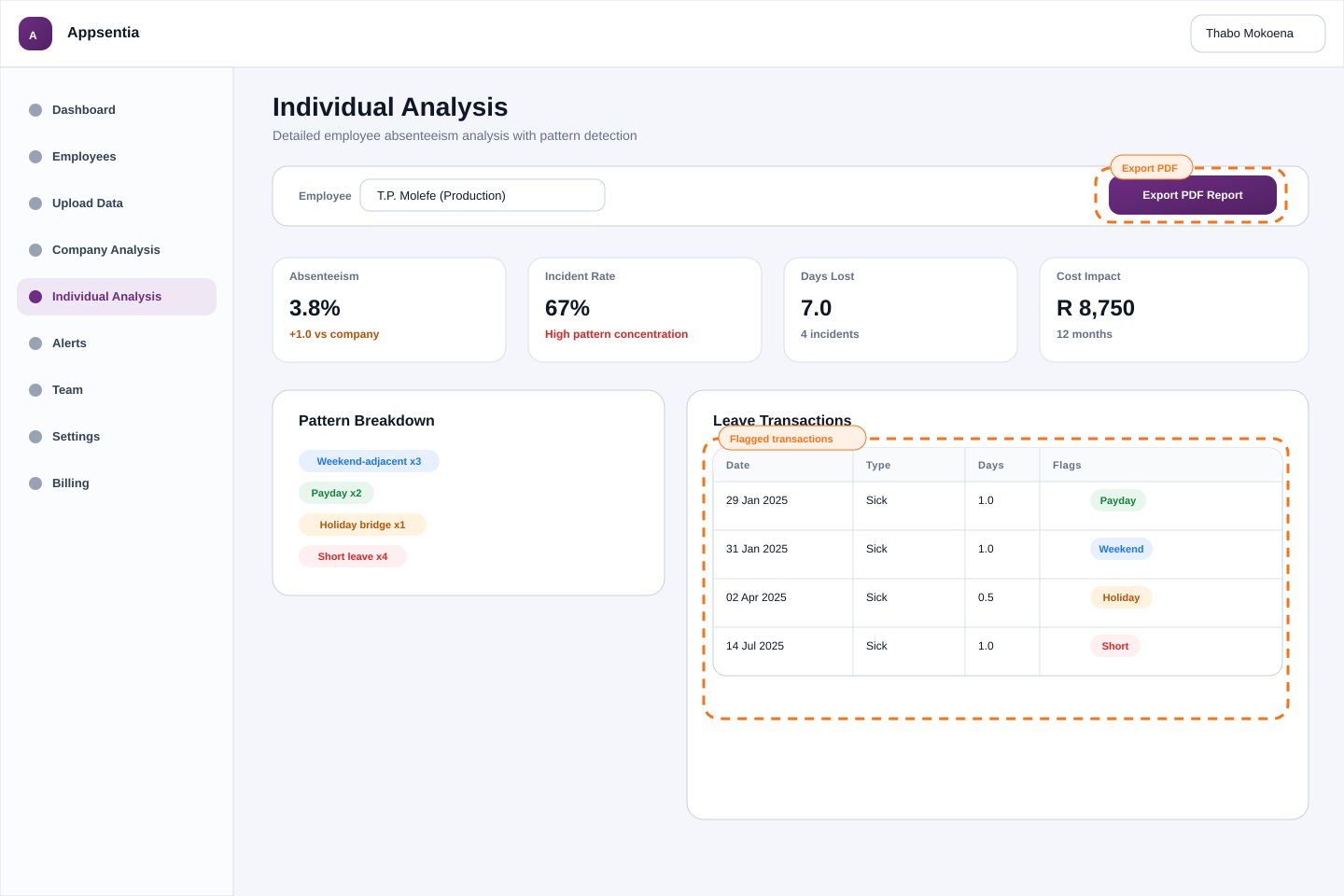
Click on any employee row to view their individual analysis, then click "Export PDF Report". This generates a professional report you can share with management or use in performance reviews.
What's Next?
You're all set! Here are your next steps:
- ✓ Review alerts: Check the Alerts page for high-risk employees
- ✓ Set up team members: Invite HR colleagues to collaborate
- ✓ Customize thresholds: Adjust settings based on your industry standards
- ✓ Schedule regular uploads: Keep your data current for accurate insights
Need Help?
Stuck on any step? Our support team is available via Live Chat (bottom-right corner) or email at support@appsentia.com.