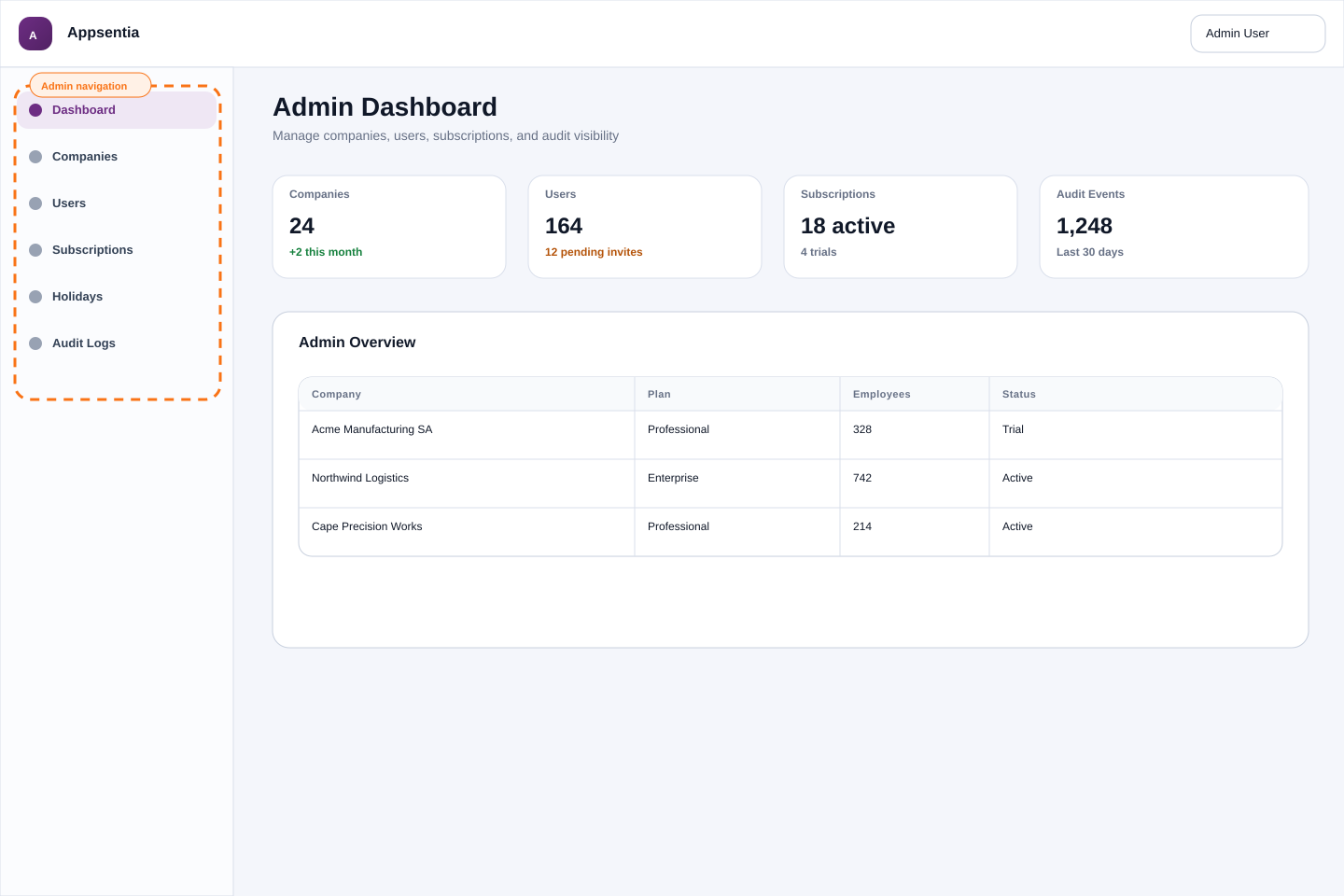
As an admin, you have full control over your company's Appsentia account. This manual covers all administrative functions, from managing users to configuring advanced settings.
Admin Dashboard Overview
When you log in as an admin, you have access to:
- Company Analysis: High-level overview of organizational absenteeism
- Individual Analysis: Employee-specific absence data and patterns
- Alerts: Real-time notifications for high-risk employees
- Employees: Manage employee records and details
- Data Upload: Import leave/absence data
- Settings: Company configuration, users, billing
User Management
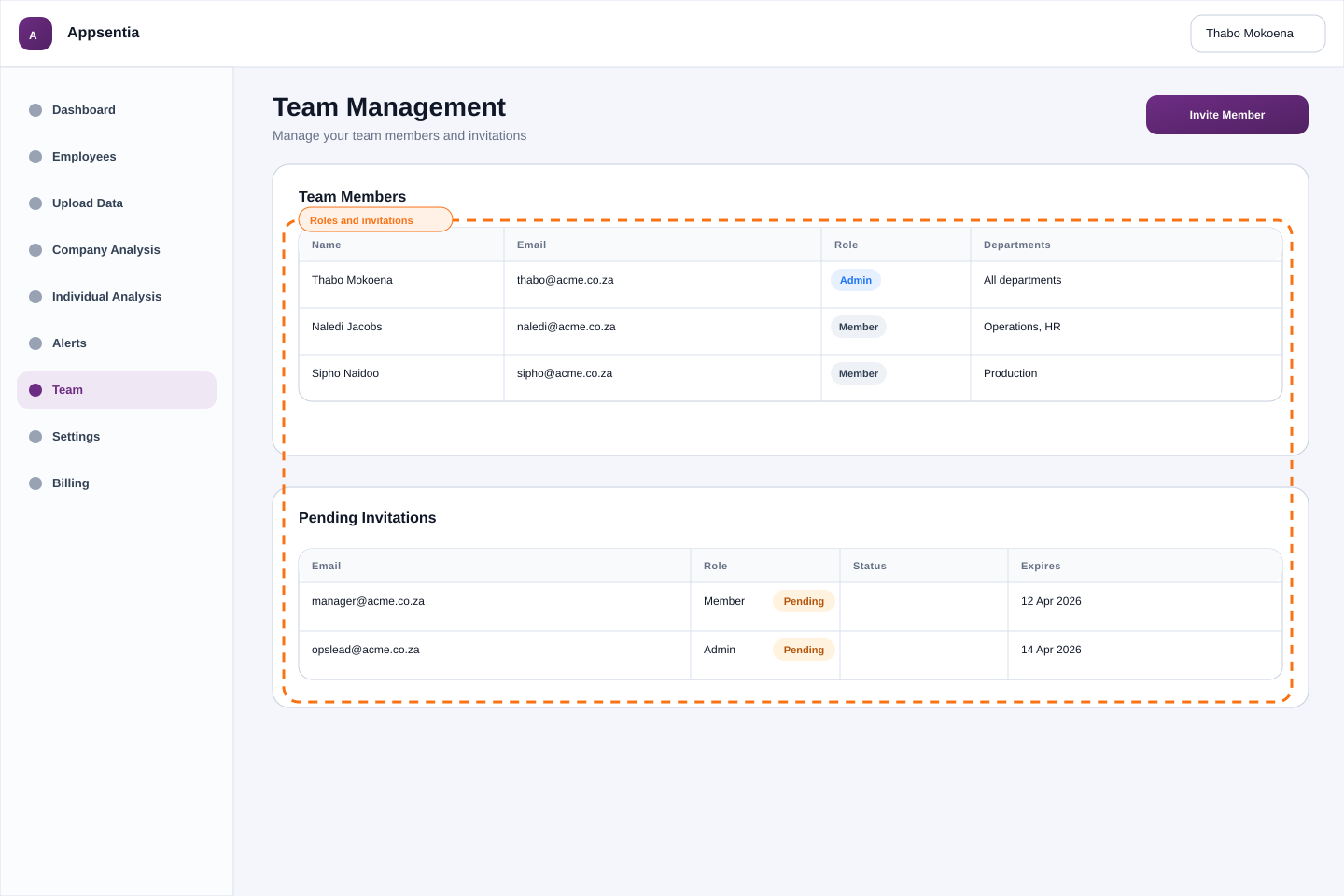
Adding Team Members
To invite colleagues to Appsentia:
- Navigate to Settings → Team
- Click "Invite User"
- Enter their email address and select a role:
| Role | Permissions | Best For |
|---|---|---|
| Organisation Admin | Full access: manage users, settings, billing, data | HR Directors, Account Owners |
| Member | View-only: access reports and analytics | HR Managers, Department Heads |
Managing Existing Users
- Change Role: Click the role dropdown next to a user's name
- Deactivate User: Click "Deactivate" to revoke access (preserves audit trail)
- Reactivate User: Toggle "Show Inactive" and click "Reactivate"
- Remove User: Only available for users who never logged in
Company Settings
Profile Configuration
Navigate to Settings → Company Profile to manage:
- Company Name: Appears on reports and invoices
- Contact Email: Receives system notifications and support responses
- VAT Number: For invoicing (South African businesses)
Workday & Threshold Settings
Critical settings that affect all calculations:
- Workdays: Select which days employees work (Mon-Fri default)
- Absenteeism Threshold: Set acceptable absence rate (2.5% SA standard)
- Average Daily Salary: Used to calculate financial impact
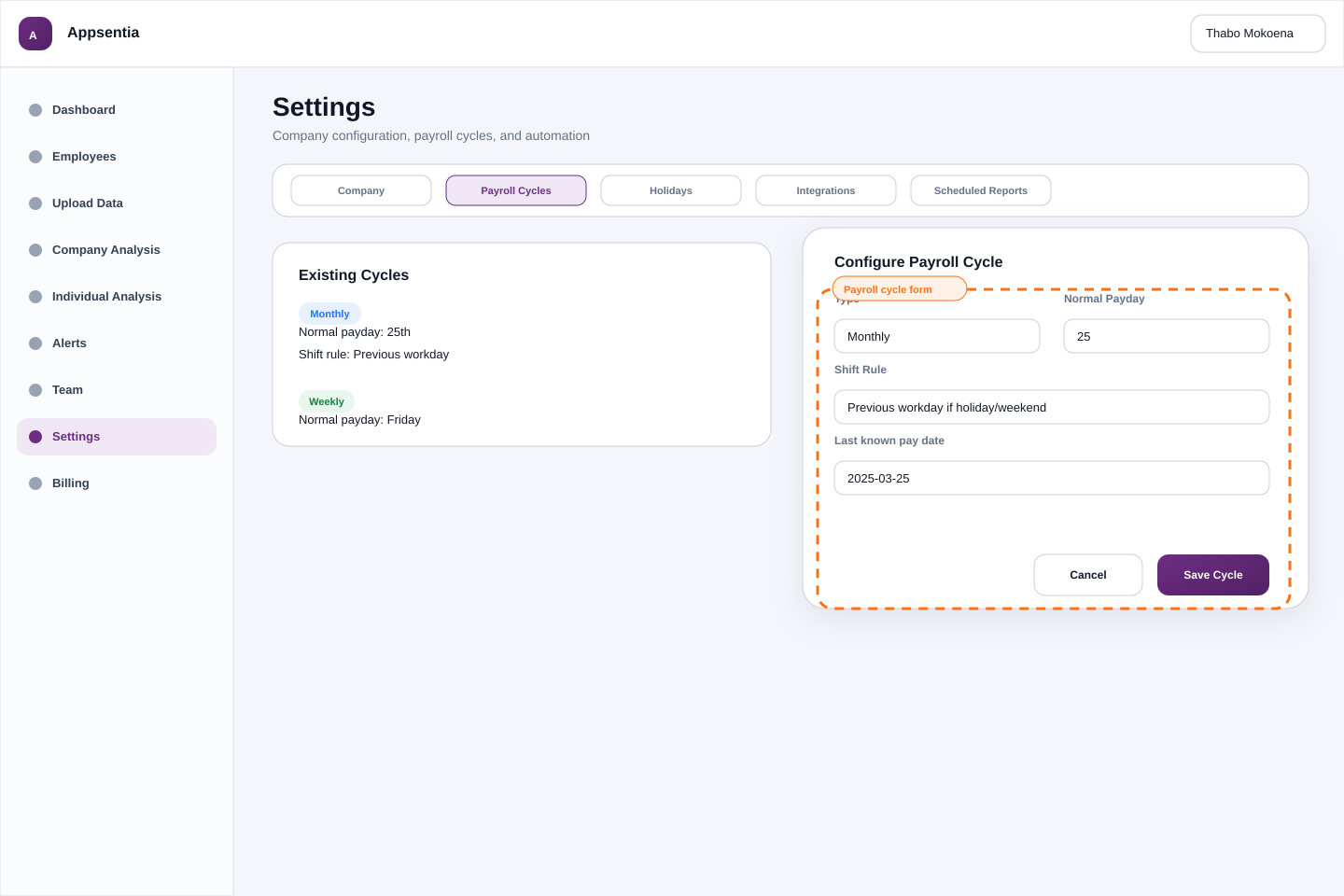
Payroll Cycle Setup
Configure payroll cycles for payday pattern detection:
- Go to Settings → Payroll Cycles
- Click "Add Cycle"
- Select type: Monthly, Fortnightly, or Weekly
- Set normal payday (e.g., "25" for 25th of month, or "Friday")
- Choose shift rule if payday falls on weekend/holiday
Employee Management
Adding Employees
Option 1: Individual Entry
- Navigate to Employees
- Click "Add Employee"
- Fill required fields: Employee Number, Surname, Initials
- Optional: Department, Employment Dates, Payroll Cycle
Option 2: Bulk Upload (recommended for 10+ employees)
- Click "Upload Employees"
- Download the Excel template
- Fill in employee data and upload
- Map columns and process
Editing & Managing Employees
- Edit Details: Click employee row → "Edit" button
- Change Status: Set to "Inactive" when employee leaves (preserves historical data)
- View Analysis: Click employee row to see their absenteeism patterns
- Export List: Download employee roster as CSV
Data Upload Management
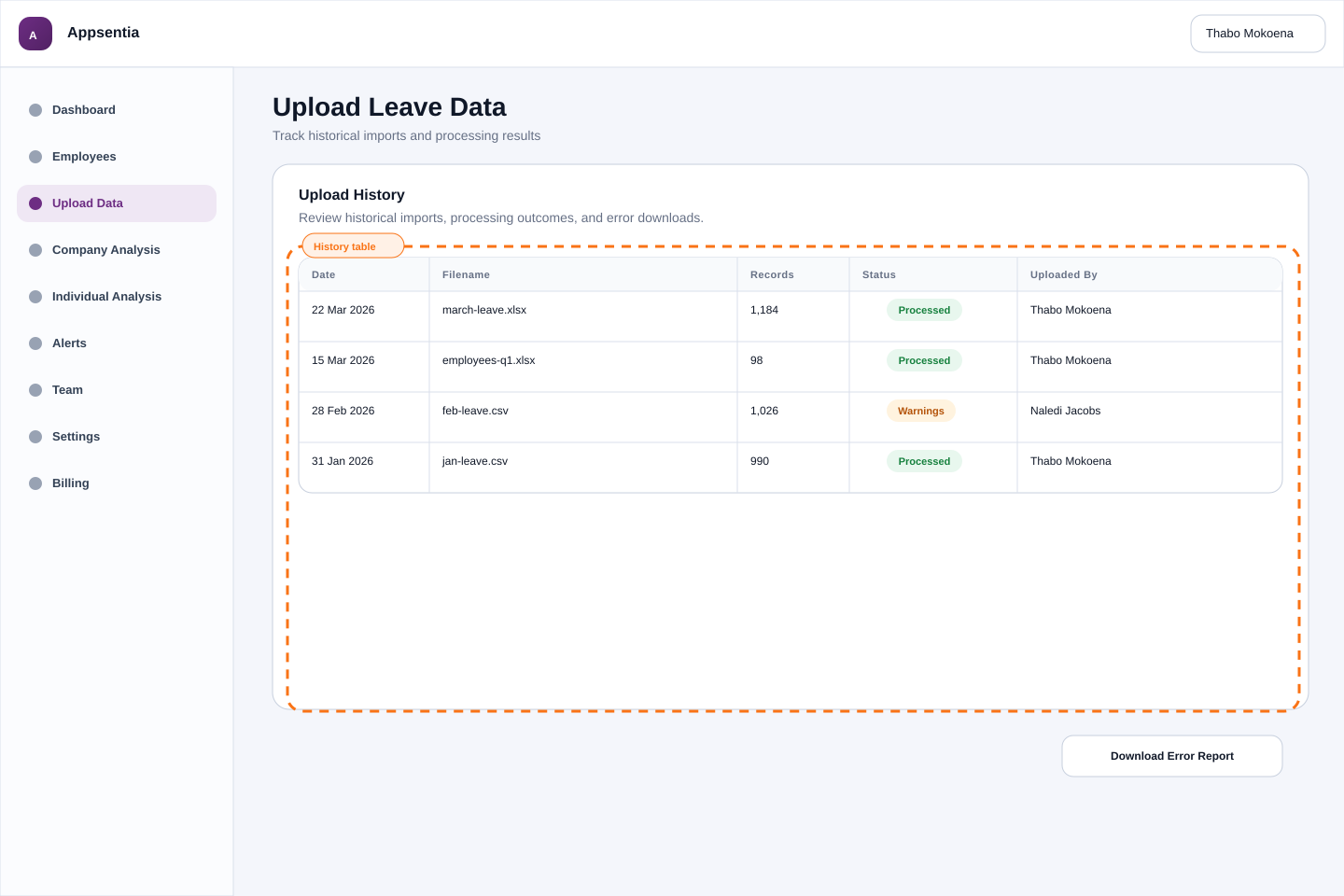
Upload History
Track all data uploads at Data Upload → Upload History:
- View date, filename, records processed, and status of each upload
- Download original file or error report
- See who performed the upload (audit trail)
Handling Upload Errors
If an upload fails or has errors:
- Download the error report from Upload History
- Review failed records and error messages
- Correct the data in your original file
- Re-upload (system prevents duplicates automatically)
Reports & Analytics
Company Analysis Dashboard
Your main analytics hub showing:
- Working Days Lost: Total absence days across organization
- Absenteeism Rate: Percentage vs. your threshold
- Incident Rate: Percentage of sick leaves with suspicious patterns
- Cost Impact: Financial cost of absenteeism
- Flagged Patterns: Breakdown of detected patterns (weekend-adjacent, payday, etc.)
- Department Breakdown: Compare absence rates across teams
Individual Employee Reports
Generate professional PDF reports for:
- Performance reviews
- HR investigations
- Management presentations
Click any employee → "Export PDF Report" to generate.
Alert Management
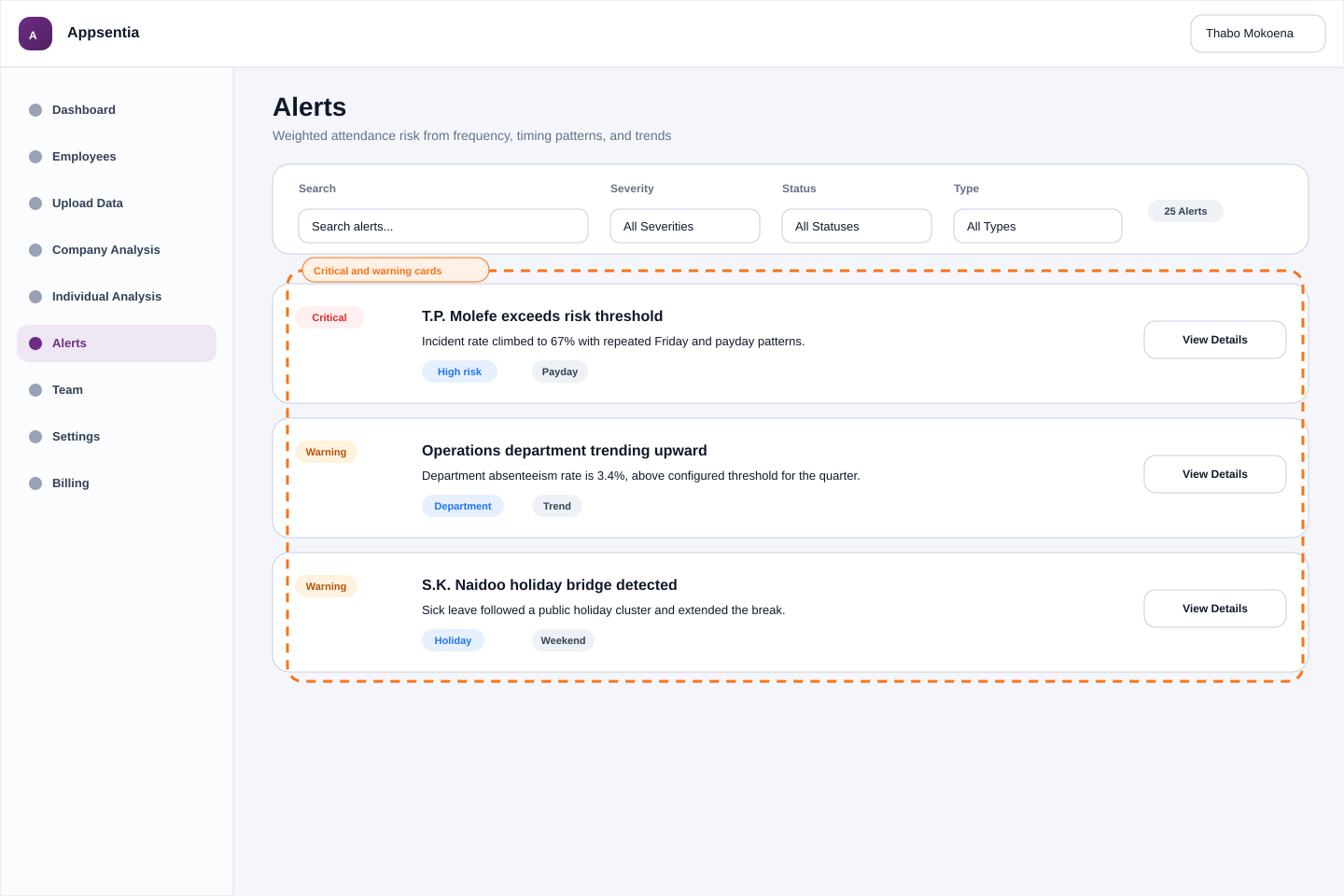
Navigate to Alerts to see high-risk employees:
- Critical: Absenteeism rate over 2x threshold OR incident rate over 75%
- Warning: Absenteeism over threshold OR incident rate over 50%
Click "View Details" to see full employee analysis.
Billing & Subscription
Managing Your Plan
Navigate to Settings → Subscription to:
- View Plan Details: Current plan, employee limit, billing cycle
- Upgrade/Downgrade: Change to different tier
- Switch Billing Cycle: Toggle between monthly and annual
- View Invoices: Download past invoices and receipts
Trial Period
During your 30-day free trial:
- Full access to all features (based on selected plan)
- Limited to 10 active employees
- No credit card required upfront
- Upgrade anytime to unlock full employee capacity
Security Best Practices
- ✓ Strong passwords: Require 12+ characters, mixed case, numbers, symbols
- ✓ Regular audits: Review team member access quarterly
- ✓ Deactivate promptly: Remove access when employees leave
- ✓ Limit admin roles: Only assign "Client Admin" to trusted personnel
- ✓ Monitor uploads: Check Upload History for unauthorized data changes
- ✓ Secure exports: Handle PDF reports as confidential documents
Support & Resources
Need help? Admins have access to:
- Live Chat: Bottom-right corner (Mon-Fri, 8am-5pm SAST)
- Email Support: support@appsentia.com (24-48 hour response)
- Resource Center: Guides, videos, and FAQs
- Phone Support: Enterprise plans only